Microsoft 365 Outlook — IT setup (delegated mail)
This guide explains how to register an application in Microsoft Entra ID (Azure AD) so Higent can use delegated permissions to access Microsoft Graph on behalf of signed-in users (send mail as the user, read/write mail where your use case requires it).
Delegated means each user (or mailbox owner) completes a Microsoft sign-in and consent flow once.
What you are provisioning
| Component | Purpose |
|---|---|
| App registration | Identifies Higent’s OAuth client to Microsoft. |
| Delegated Graph permissions | The signed-in user authorizes mail actions Higent performs as that user. |
| Redirect URI | Where Microsoft returns the user after sign-in (must match Higent’s callback URL exactly). |
| Client secret | Used server-side for the token exchange. |
Part 1 — Azure / Entra: app registration
1.1 Create the app registration
-
Sign in to the Microsoft Entra admin center (or the Azure Portal — App registrations).
-
Go to App registrations → New registration.
-
Choose a display name (e.g.
higent). -
Supported account types
- Single tenant (recommended for most enterprises): Accounts in this organizational directory only.
-
Complete the wizard.
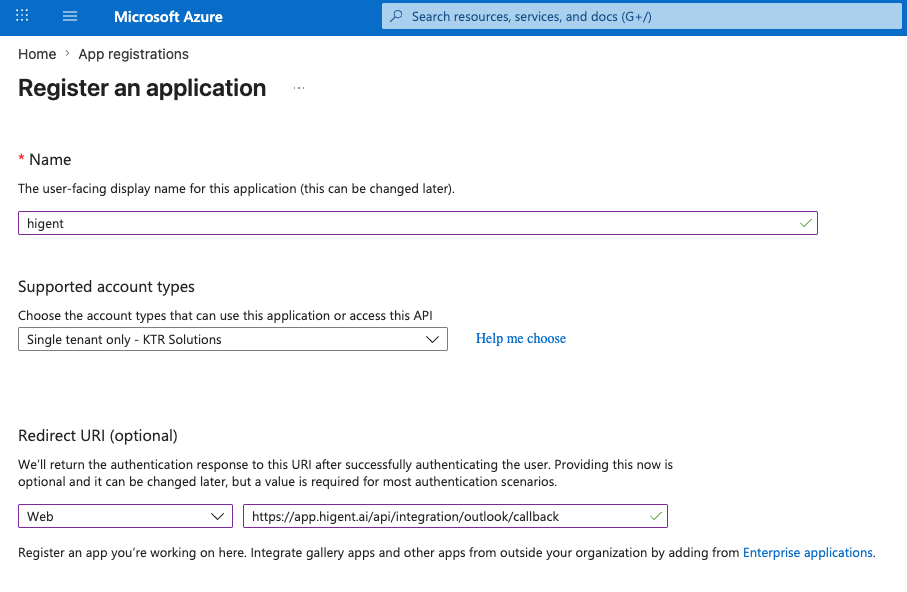
1.2 Record identifiers
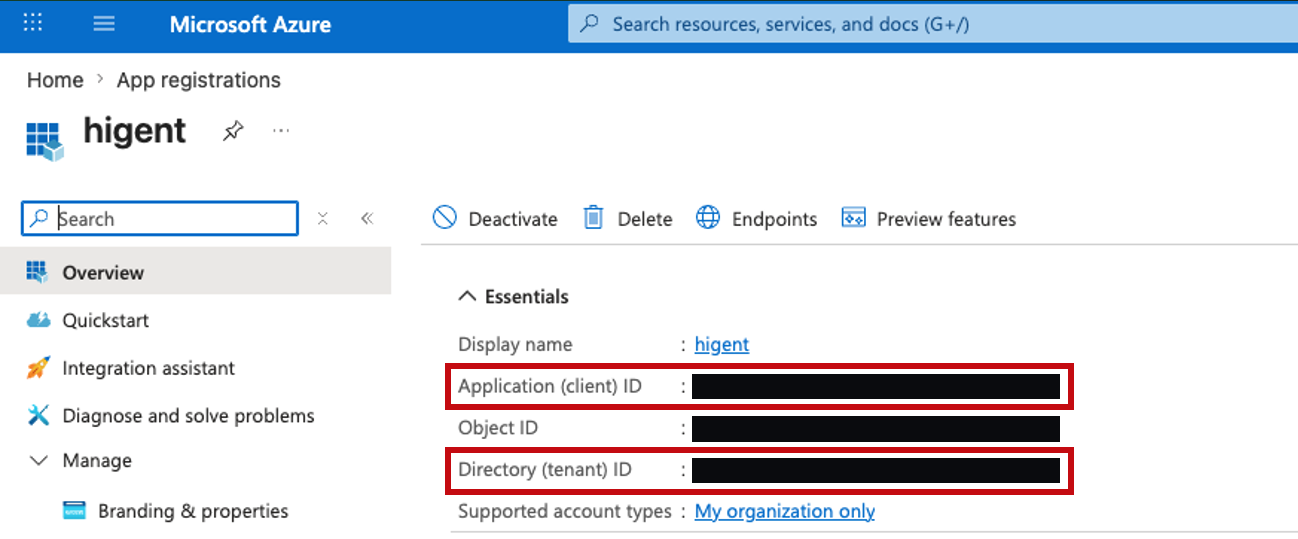
On the app’s Overview page, copy:
- Application (client) ID → Higent field: client ID
- Directory (tenant) ID → Higent field: tenant ID (for single-tenant apps, use this GUID rather than
common)
1.3 Configure authentication — redirect URI
Use this exact Web redirect URI (path is fixed by the product):
https://app.higent.ai/api/integration/outlook/callback
In Entra: App registration → Authentication → Platform configurations → Add a platform → Web → add the URL above.
Save the configuration.
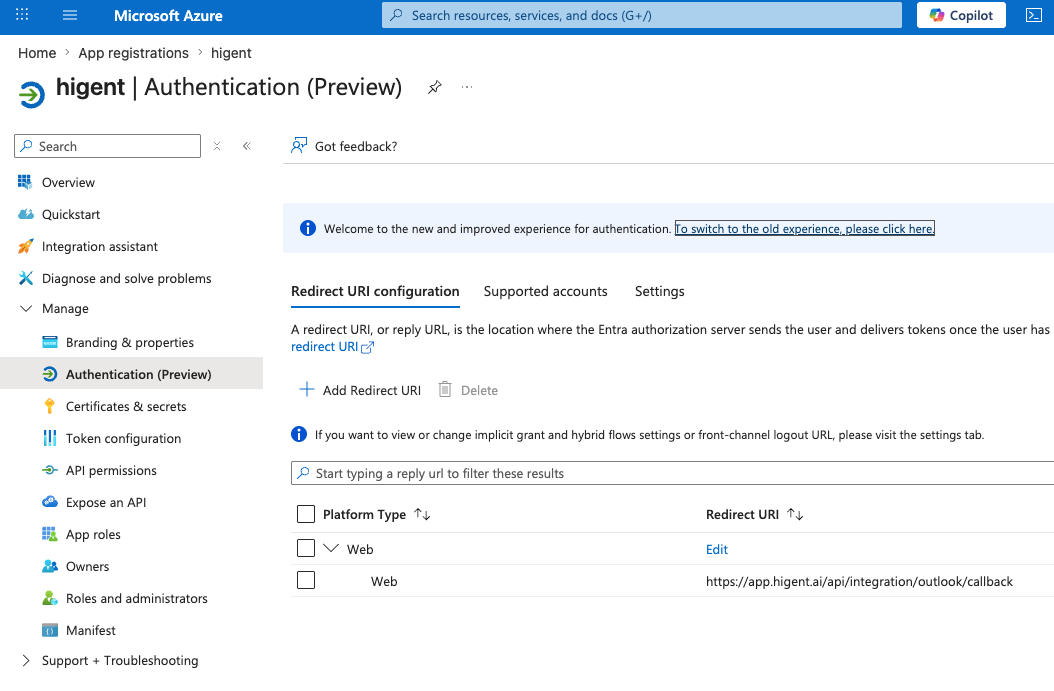
Important: The redirect URI in Entra must character-for-character match this URL. If it differs, users will see errors after signing in at Microsoft.
Optional: under Implicit grant and hybrid flows, leave default unless your tenant policy requires otherwise; Higent’s flow uses the authorization code pattern.
1.4 API permissions — Microsoft Graph (delegated)
Go to API permissions → Add a permission → Microsoft Graph → Delegated permissions.
Add at least the following (aligned with Higent’s default delegated scopes for mail tools):
| Permission | Why |
|---|---|
Mail.Send | Send email as the signed-in user. |
Mail.ReadWrite | (Optional) Read/update mailbox (broader Outlook automation in Higent, not only “send”). |
offline_access | Issue a refresh token so Higent can obtain new access tokens without repeated user prompts. |
openid | OpenID Connect sign-in. |
profile | Basic profile for sign-in. |
email | Email claim in token (sign-in / identification). |
User.Read | Sign in and read the user profile via Microsoft Graph (often listed in Entra next to OIDC scopes). |
Then click Grant admin consent for your organization where policy requires admin-approved permissions.
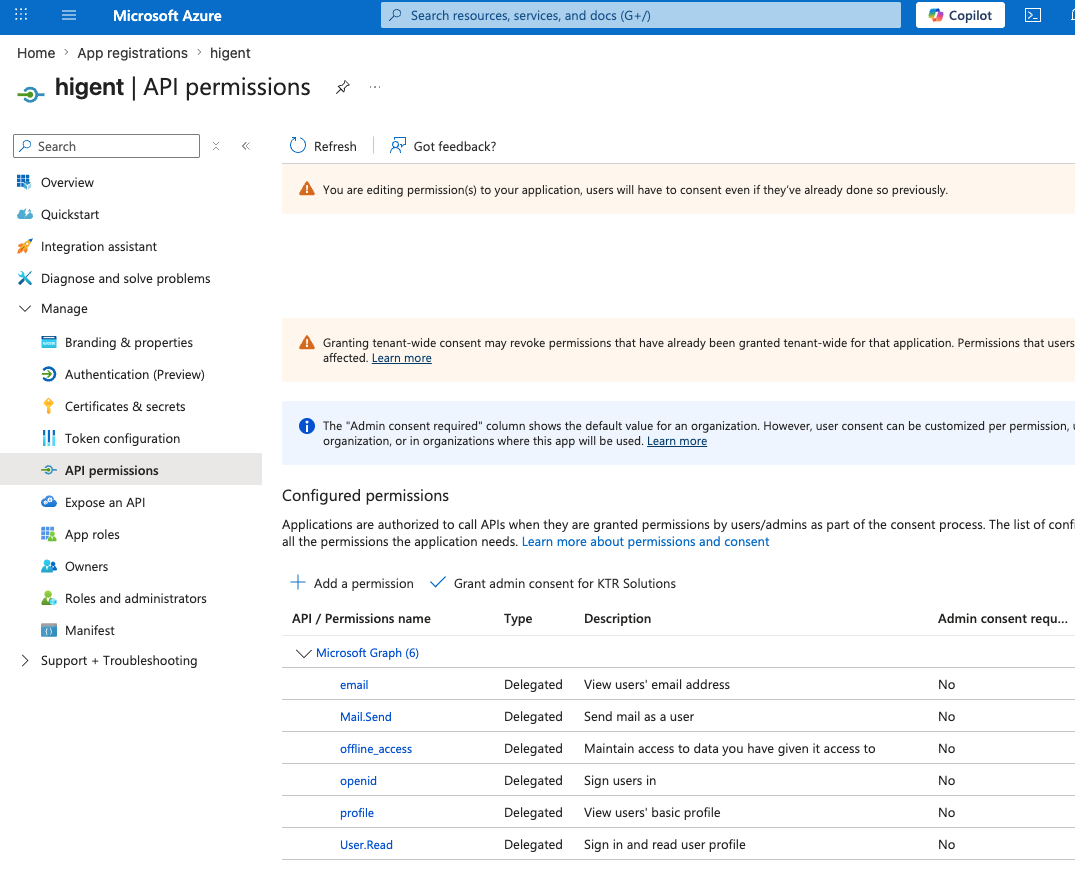
If you intentionally restrict permissions (e.g. only send), coordinate with support—some product features assume Mail.ReadWrite.
1.5 Client secret
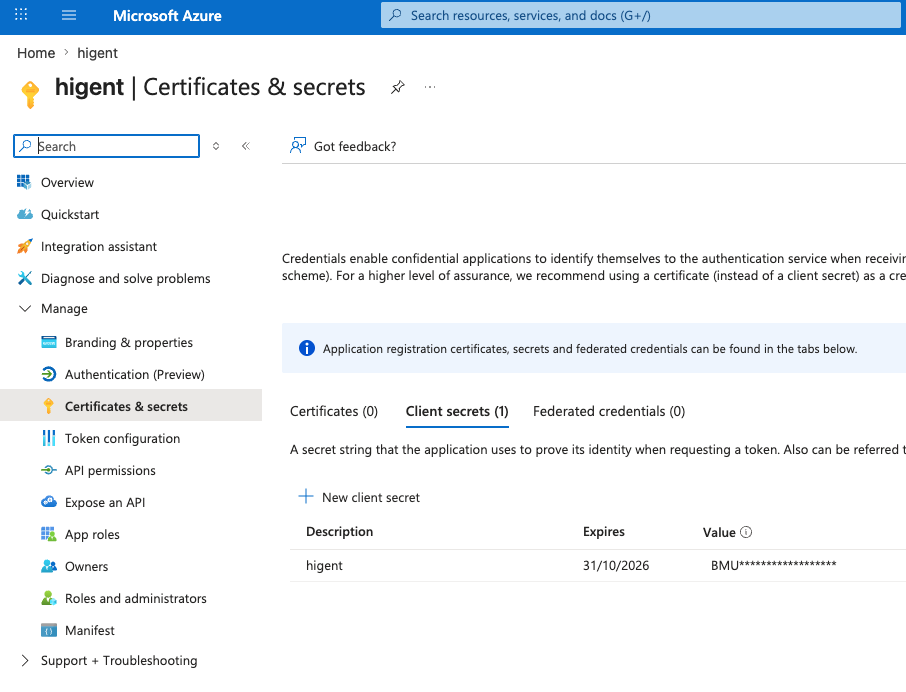
- Certificates & secrets → New client secret.
- Set an expiry per your security policy; copy the secret value immediately (it is not shown again).
- Store it in your enterprise secret vault; paste it once into Higent’s organization Outlook configuration (Part 2).
Certificate-based auth can replace a secret in principle; Higent’s current Outlook integration is oriented around client secret. Use a secret unless you were given a certificate-based procedure.
Part 2 — Connecting Azure to Higent (organization credentials)
Higent splits Outlook configuration into:
- Organization (tenant-wide) app registration — client ID, client secret, tenant ID, optional delegatedScopes string.
- Per-user tokens — via the Connect OAuth button (Part 3); users do not enter secrets.
2.1 Where to enter credentials
-
Open Settings → Integrations → Outlook.
-
Ensure the configuration is scoped to the organization (not an end-user-only row): the app registration applies tenant-wide.
-
Enter:
- clientId — Application (client) ID from Azure.
- clientSecret — the client secret value.
- tenantId — Directory (tenant) ID for single-tenant apps (recommended), or
common/organizationsonly if your Entra multitenant setup requires it. - delegatedScopes (optional) — space-separated list. If omitted, Higent uses its default, equivalent to:
offline_access openid profile email https://graph.microsoft.com/Mail.Send https://graph.microsoft.com/Mail.ReadWrite
If User.Read is also granted in Entra, appendhttps://graph.microsoft.com/User.Readso the OAuth scope string matches app permissions.
-
Save the configuration.
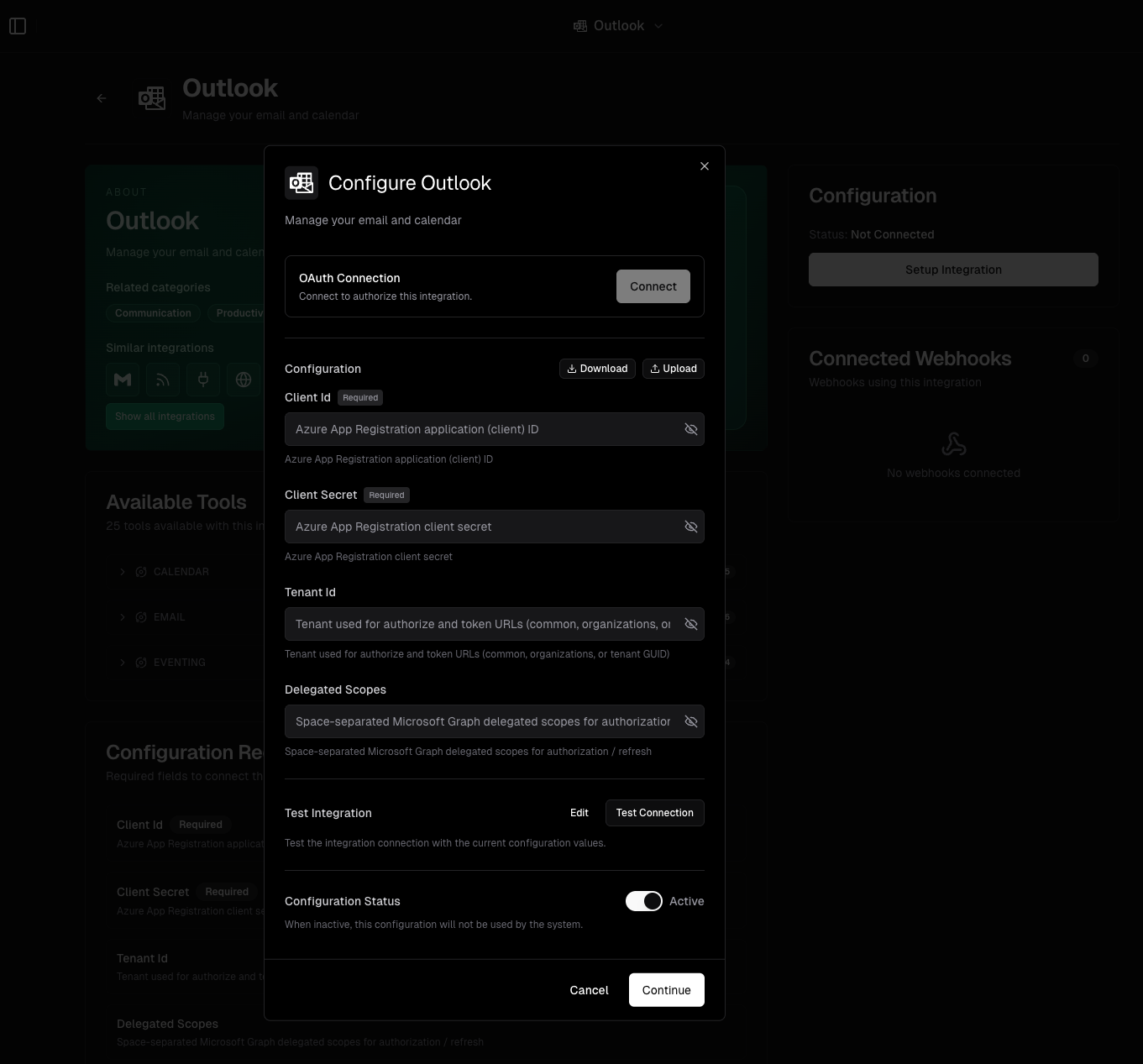
After saving, the org has the OAuth application Higent needs. Sending mail still requires each user to choose Connect (Part 3) so Higent receives that user’s refresh token.
Part 3 — End-user OAuth (sign in and consent)
Each user who should use Outlook through Higent must authorize Microsoft once (or again after revocation or password changes, as applicable).
3.1 Typical flow
- User opens https://app.higent.ai/ktr-solutions/configuration.
- Clicks Add integration (or equivalent).
- Searches for Outlook.
- Clicks Connect (or Reconnect).
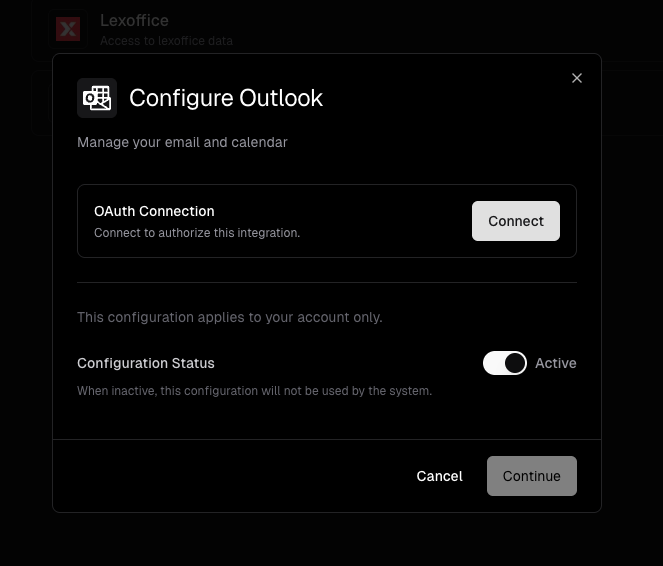
- Browser redirects to
login.microsoftonline.comfor your tenant. - User signs in with their Microsoft 365 work account.
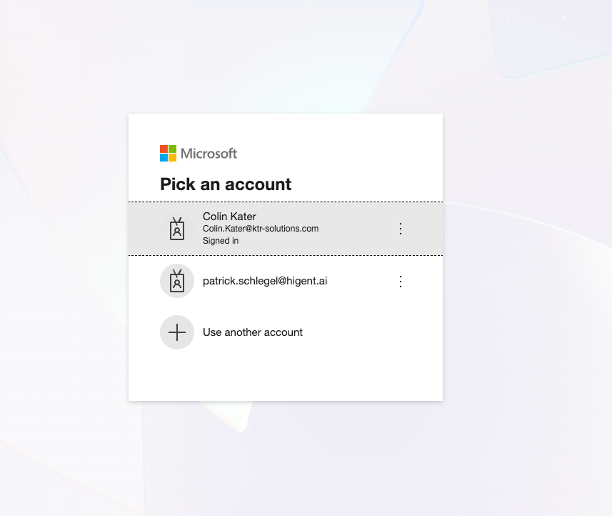
- Microsoft shows permissions / consent for the delegated rights (for example send mail, read/write mail where configured).
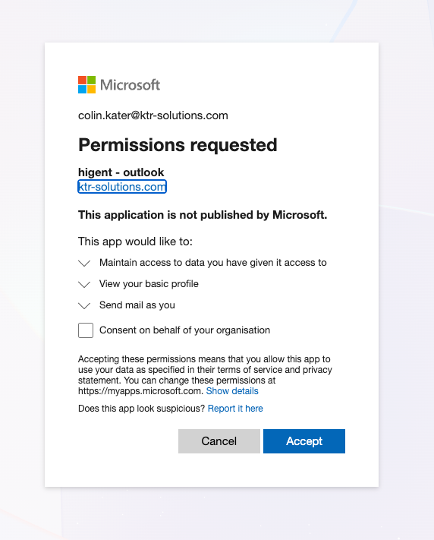
- User returns to Higent with success; Connect may show as connected.
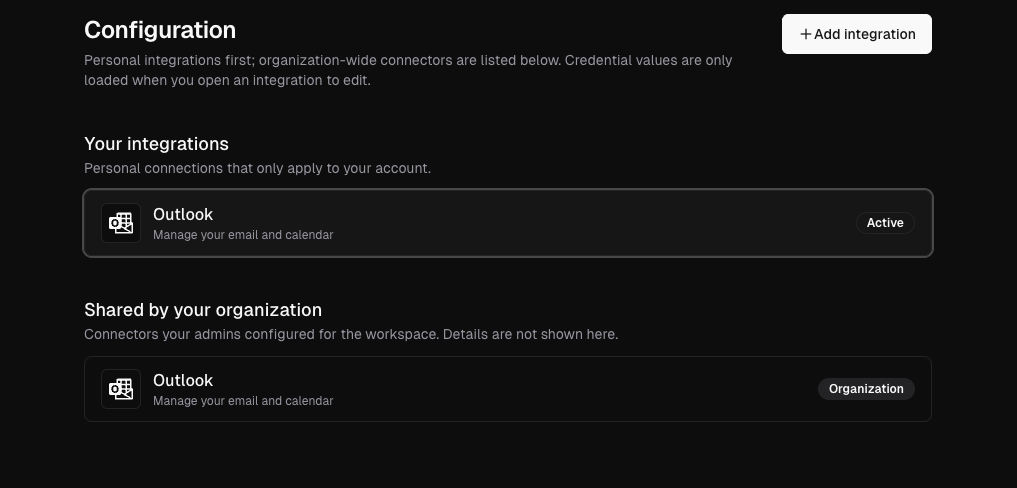
3.2 Admin consent vs user consent
- If admin consent was granted in Entra (Part 1.4), users may still see a consent screen, but typically not “admin approval required” for those permissions.
- Conditional Access, IP restrictions, or device compliance policies still apply to the user’s sign-in.
Summary checklist
- App registration created (correct account type for your tenant).
- Web redirect URI:
https://app.higent.ai/api/integration/outlook/callback. - Delegated permissions: Mail.Send, Mail.ReadWrite (optional, for broader features), offline_access, openid, profile, email, User.Read (adjust only with product guidance).
- Admin consent granted in Entra.
- Client secret created and recorded securely.
- Higent org Outlook: clientId, clientSecret, tenantId saved.
- Each mailbox user completes Connect in Higent.